Scheduling Facebook Group Posts: All Methods and Limitations
Facebook does let you schedule a post in a group, but only if you manage it. This is the difference most people miss, and why most guides don’t help.
Searching “how to schedule a post in a Facebook group” leads to dozens of guides showing a screen most of you don’t see. The reason is simple, and it’s the first thing to know.
What Facebook Allows
Facebook has built-in scheduling for groups, but it’s only for group admins. If you run your own group, it works and it’s free:
- Open the group and click the post box.
- Write your post and add images if needed.
- Click the calendar icon, or the three-dot menu and then “Schedule Post”.
- Pick a date and time and confirm.
- Scheduled posts are listed in the group’s admin tools. You can edit or cancel them until they go live.
What to Do If You’re Just a Member
| Method | Suitable for | Limitation |
|---|---|---|
| Built-in Scheduling | A group you manage | Not available for regular members |
| Meta Business Suite | Business Pages | Partial support for groups, only for groups you manage |
| Reminder and Manual Posting | For those posting to one or two groups | You have to be available at that exact time |
| External Tool | List of groups you’re a member of | Check if it runs in your browser or on a server |
Most tools you’ll find in English schedule to pages and groups you manage, but don’t solve the real case: a business that wants to post to twenty groups it’s a member of. For details on what sets each tool apart, see the software selection guide.
Why Schedule at All
Scheduling sounds convenient, but three of the reasons are about results:
- Post when the group is active, not when you’re free. Resident groups are busiest in the evening, just when most business owners are away from the computer.
- Spread out your posts. Five posts sent in a row look very different from five spread over a day, both to admins and to Facebook’s detection systems.
- Stay consistent. This channel works through steady presence. Missing a week because you’re busy is what trips up most businesses.
- Respect posting days. Many groups only allow ads on a set day. Scheduling ahead solves this without remembering.
How to Build a Weekly Posting Plan
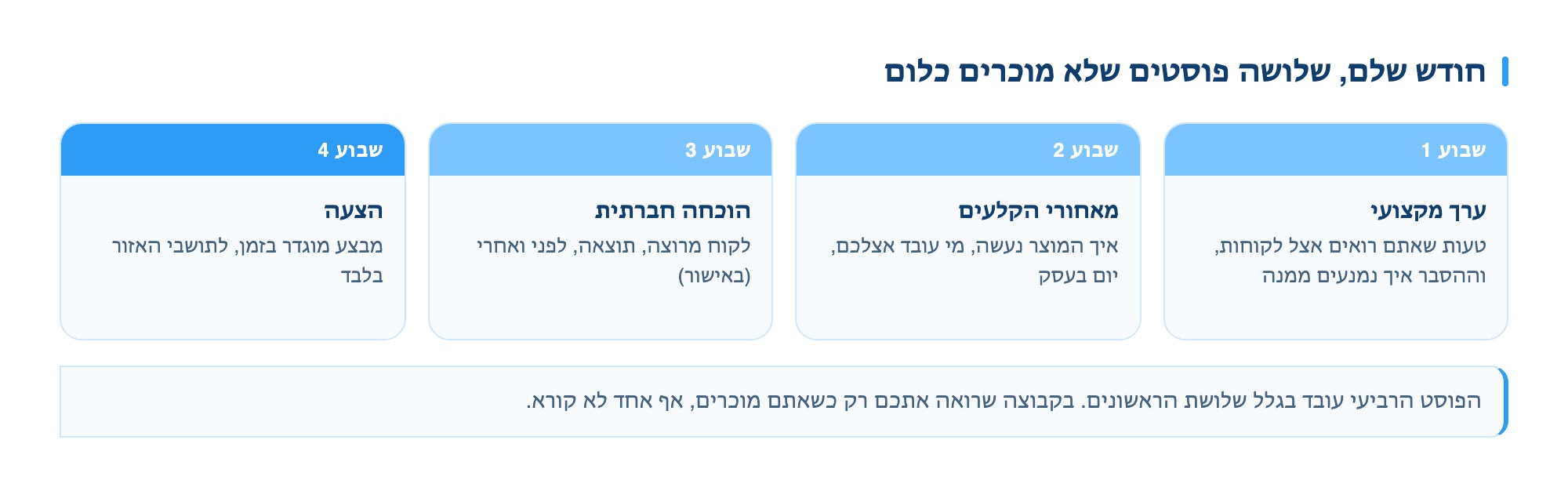
A schedule that works for most businesses looks like this, and is based on one rule: three out of four posts do not sell anything.
| Day | Post type | To which list |
|---|---|---|
| Sunday | Professional value or tip | Topic groups |
| Tuesday | Answer to a recurring question | Local groups |
| Thursday | Social proof or behind the scenes | All |
| Once every two weeks | Time-limited offer | Groups that allow ads |
The reason this ratio works: in a group that only sees you when you sell, no one reads. The fourth post works because of the first three.
What to Do When a Scheduled Post Doesn’t Go Out
A scheduled post that didn’t appear is almost always one of four cases, each with a different sign:
| What happened | How to check | What you’ll do |
|---|---|---|
| Waiting for admin approval | Sent on time, but not showing in the group feed | Wait. Don’t repost |
| The group changed its rules | Rejected in one group, posted in the rest | Read the rules again, check the posting day |
| Temporary account restriction | Didn’t go through in any group | Stop everything and wait |
| You were removed from the group | No access to the group at all | Remove it from the list |
The key rule: If a scheduled post didn’t go out, don’t resend it manually before checking what happened. If it’s a restriction, trying again just makes it last longer. There’s a separate page on posting blocks and what to do.
Write a Month’s Posts in One Sitting
The real advantage of scheduling is not that the post goes out at a convenient time, but that you can separate writing from publishing. Most businesses fail in this channel not because the posts are bad, but because in a busy week, they just don’t write.
- Set aside one hour a month. No more. Aim for four to six posts, not perfection.
- Start with the questions you got this month. Every customer question is a ready-made post, already phrased in their words.
- Write them all at once, no editing. Editing as you write is what turns one hour into three.
- Sort by type, not by writing order. Value, value, proof, offer.
- Schedule them all at once. The month is set, and all that’s left is to reply to comments.
Four Scheduling Mistakes
- Don’t schedule all groups for the same minute. That’s the most obvious pattern. Spread them over hours.
- Schedule and come back. A post with replies you don’t answer works against you. Schedule for times you can return.
- The same text for every group. Change your wording between groups, both for Facebook and for admins who are in several groups.
- Ignore the weekend. Resident groups are more active on Saturday, business groups stop. One schedule doesn’t fit both.
For posting times, see the separate page: Best times to post in Facebook groups.
Want a posting schedule that runs itself?
Leave your details and we’ll show you what a weekly schedule for your groups looks like, with images and the first comment.
For a free demo